How to run a skill on a schedule in the cloud
A skill needs an agent to run it. Deploy the skill as an app, then schedule the app: cron in your own time zone, output emailed or POSTed, no server to run.
A skill is instructions for an agent, so a schedule needs somewhere the agent already runs. Deploy the skill as an app, then put the app on a timer: one POST creates a cron schedule in your own time zone, and each run’s output is emailed or POSTed to a webhook. No server, no CI runner.
Updated September 2026: the flow below is unchanged. On the billing side, the flat per-run overhead is now $0, so a scheduled run is priced on tokens alone and carries no markup when you run your own app.
Some skills want to run on their own. A morning digest, a nightly check, a weekly report — work that should happen whether or not you’re at your terminal with an agent open. A skill can’t do that by itself, which is why the question “how do I run my skill on a schedule” is really “where does it run when I’m not there?”
The limits, up front
| Limit | Value | Why it is that number |
|---|---|---|
| Platform tick | every 15 minutes | nothing fires more precisely than the tick |
| Cron cadence floor | once per clock hour | the minute field must resolve to a single value |
| Interval range | 60 minutes to 7 days (10,080 minutes) | an agent run costs credits; a dispatch-only function schedule floors at 15 minutes |
| Schedules per app | 5 | |
| Agent runs per tick | 10 | one tenant cannot monopolise a tick |
| Run wall clock | 120 seconds, plus a 60-second grace | |
| Email delivery | up to 48 sends per schedule per day | |
| Webhook delivery | https only, 10-second timeout, redirects not followed | a redirect could point back at an internal host |
| Output delivered | first 20,000 characters, with a truncated flag | |
| Run input | a JSON object, max 16 KB | |
| Auto-disable | after 10 consecutive genuine failures | a broken app should not bill forever |
Step 1: Deploy the skill as an app
A schedule needs a thing to run, and on SkillSafe that thing is an app. Deploying turns your skill’s prompt into an app at https://{slug}.skillsafe.ai that runs on our infrastructure — the walkthrough is in turn your skill into an app. One caveat before you go further: an app published as completely free has server-side agent runs disabled by design, so it cannot be scheduled. Schedules bill the owner, and a free app has no lane to bill.
Step 2: Create the schedule
POST /v1/apps/{slug}/schedules
{
  "kind": "agent",
  "cron": "0 9 * * mon-fri",
  "timezone": "America/New_York",
  "input": { "region": "us-east" },
  "deliver_email": true
}
That runs the app’s prompt every weekday at 9am — and 9am means 9am where you are. The schedule is evaluated against an IANA time zone name rather than a fixed offset, so it holds its slot across daylight-saving changes instead of drifting an hour twice a year. input is passed to the run exactly as if a user had submitted it, so a schedule is “run this app with these arguments, on this timer.”
kind picks the lane: "agent" runs the app’s own prompt, which is what “run my skill every morning” means. Prefer a plain interval to a cron expression? Send "interval_minutes": 120 instead — anything from 60 minutes to 7 days on the agent lane.
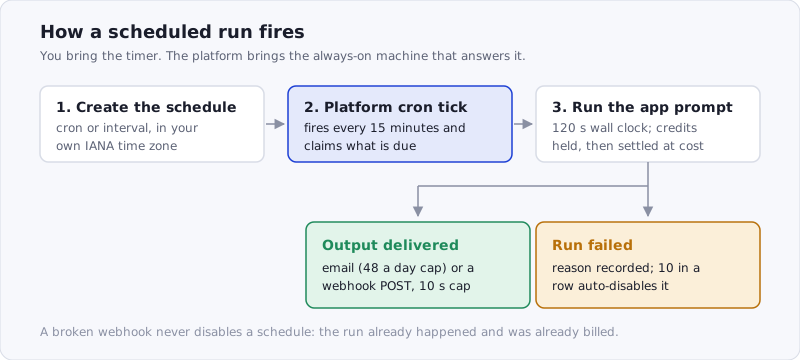
Figure: the tick claims each due schedule by advancing its next-run stamp first, so two overlapping ticks cannot double-fire the same run.
Step 3: Pick a cadence cron can honestly honor
The cron parser takes the standard five fields — minute, hour, day-of-month, month, day-of-week, as specified for crontab — and supports the forms you’d expect: ranges (9-17), steps (*/2), lists (0,30) and weekday names (mon-fri).
It follows Vixie cron semantics, including the one people get wrong: when you restrict both day-of-month and day-of-week, they act as a union. 0 9 13 * FRI means “the 13th, and every Friday,” not “Friday the 13th.” That is not our quirk — it is how the reference implementation has behaved for decades, and matching it is less surprising than being clever.
Two rules are ours, and both are refusals rather than silent adjustments:
- The minute field must resolve to a single value.
0 * * * *(hourly) and30 9 * * *(daily) are fine;*/15 * * * *is rejected withcron_too_frequent. A sub-hourly cron outruns the 15-minute tick, falls unboundedly behind, and eats the per-tick budget every other tenant’s schedule shares. - A cron that can never occur is rejected.
0 0 30 2 *parses cleanly and never happens. Storing it would give you a schedule that looks healthy forever and never runs.
Within an hour, precision is bounded by the tick: a schedule asking for 03:07 runs at the first tick at or after 03:07. That’s fine for the things people actually schedule, and we’d rather say it than imply second-level precision we don’t have.
Step 4: Choose where the output goes
A scheduled run nobody sees is pointless, so delivery is built in.
deliver_email: trueemails you the run’s output, up to 48 sends per schedule per day.deliver_webhook_urlPOSTs{app: {slug, title}, schedule_id, ran_at, output, truncated}to an https endpoint — into Slack, a database, wherever. The URL is re-validated at delivery time, not just at creation, because a hostname that resolved somewhere public last week can resolve somewhere private today.
Either sink gets the first 20,000 characters of the output with truncated telling the receiver whether to go fetch the rest. A broken sink never disables the schedule: the run already happened and was already billed, so a 500 from your webhook is logged, not fatal.
Step 5: Know how failures behave
If a run fails for real — you’re out of credits, or a daily cap is hit — the schedule records why and keeps trying. Ten consecutive genuine failures auto-disable it so a broken app doesn’t burn credits forever; re-enabling resets the counter. Skips are not failures: when the owner is debt-blocked or a cap is hit, the row is passed over without incrementing the counter, so a temporary billing state can’t quietly retire a working schedule.
What this replaces
The usual way to run a skill on a timer is a cron job on a server you maintain, or a GitHub Actions workflow with the agent’s credentials in CI secrets and a runner to configure. Both work. Both are infrastructure you now own.
They also have their own honesty problems. GitHub’s own docs note that “The schedule event can be delayed during periods of high loads of GitHub Actions workflow runs” and that “The shortest interval you can run scheduled workflows is once every 5 minutes” (GitHub Actions events reference). Every scheduled platform has a tick and a queue; the difference is whether it tells you. Ours is 15 minutes, in writing.
Scheduling an app is neither a server nor a runner: the app already exists, metered per run, and a schedule is a single API call against it. You bring the timer; we bring the “always on.”
Billed to you at cost — running your own app on a schedule carries no markup, and what a run actually costs is broken down in what it costs to run an AI app on SkillSafe. Deploy the skill once, and it can work while you sleep.
Frequently Asked Questions
Can a Claude Code skill run on a schedule by itself?
No. A skill is instructions an agent reads, so with no agent running there is nothing to execute. The working pattern is to deploy the skill as a hosted app and schedule the app, which puts the prompt on infrastructure that is already awake. Browse skills to start from at /skills/.
What is the shortest interval a SkillSafe schedule can use?
One hour on the agent lane: intervals run from 60 minutes to 7 days, and a cron expression’s minute field must resolve to a single value. The platform tick is every 15 minutes, so a run asking for 03:07 fires at the first tick at or after it. Server-function schedules floor at 15 minutes instead.
Does the schedule handle daylight saving time?
Yes. Schedules store an IANA time zone name such as America/New_York, not a UTC offset, so 0 9 * * mon-fri stays at local 9am across both DST transitions. Storing an offset is what makes a “9am” job drift an hour twice a year.
How do I get the output of a scheduled run?
Set deliver_email: true, or set deliver_webhook_url to an https endpoint that receives {app, schedule_id, ran_at, output, truncated}. Both sinks carry the first 20,000 characters. A failing webhook is logged rather than fatal, since the run already happened and was already billed.
What happens if my scheduled app keeps failing?
Genuine failures — out of credits, a daily cap, a run error — are recorded with a reason and retried on the next due tick. After 10 in a row the schedule auto-disables so it cannot bill indefinitely; re-enabling resets the counter. Skipped ticks from a billing block do not count toward that total.
More ways to run a skill: on any machine · shared with no install · in a browser